Website Security Headers: From a B to an A+ in Three Small Changes
Run your site through securityheaders.com, add HSTS and a Content Security Policy, then run it again. What moved the grade, what didn't, and how to check it.

If you paste your site’s address into securityheaders.com it gives you a letter grade, and mine came back as a B, so I thought I would work through what it takes to get to an A+ and take a screenshot at each step along the way, including the one change that did nothing to the grade at all.
The problem
The grade is based on 6 response headers and the report lists which ones are missing. Here is mine before I touched anything. A score of B is not bad, as 4 of the 6 were already there because I had added them when I rebuilt the site in Astro on Cloudflare.
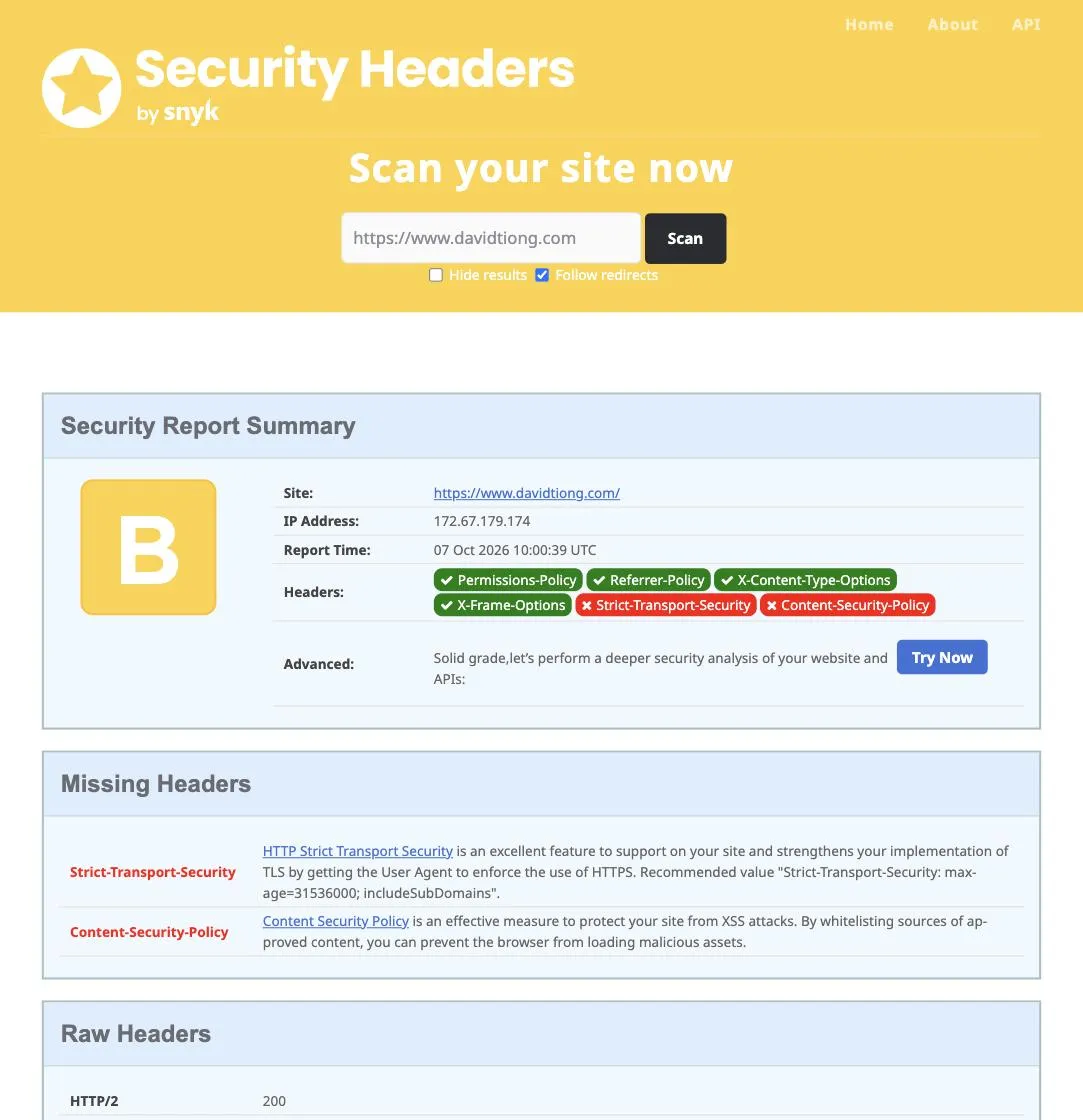
The 2 missing ones were Strict-Transport-Security and Content-Security-Policy, which are very different sizes of job, so I did them as separate changes.
The fix, part 1: one line for HSTS
Strict-Transport-Security, or HSTS, tells a browser that once it has seen your site over HTTPS it should never try plain HTTP again, for however long you say. My site is HTTPS only, with the bare domain redirecting to www, so nothing changes for visitors. It’s one line in Cloudflare’s _headers file in the public/ folder:
/*
  Strict-Transport-Security: max-age=31536000
That number is one year in seconds, and there are two things I’d say before you copy it. The usual recommendation adds ; includeSubDomains, and I left it off on purpose, because it commits every subdomain you ever create to HTTPS for the whole period and a browser can’t be told to forget early. If you aren’t certain about every subdomain, leave it off too, and only add HSTS at all once your site already redirects everything to HTTPS, because if it doesn’t, you’ve just locked visitors out.
I pushed it, waited for the build and scanned again.
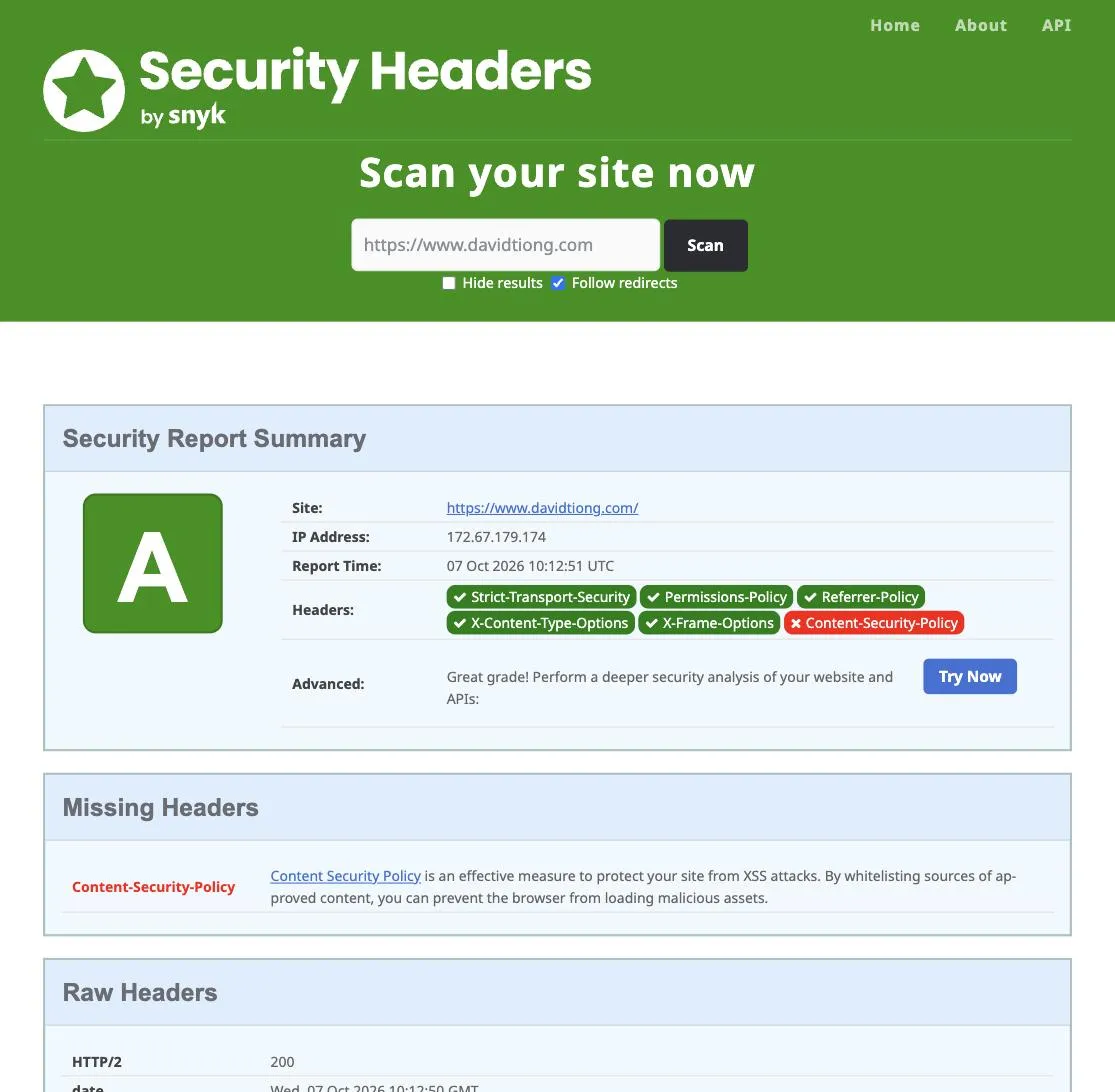
That took it from a B to an A, with the two scans twelve minutes apart.
The fix, part 2: a Content Security Policy
A Content Security Policy takes more steps. It is a list of where your pages are allowed to load things from, so scripts, styles, images, fonts, frames and where forms may submit to, and the browser refuses anything that isn’t on the list. It’s the main defence against someone injecting a script into your page, and I think it’s the header most sites skip because getting it wrong breaks things without any obvious error. The list is something you put together yourself from what your pages load, so that’s where to start.
Step 1: find out what your pages load
Open your site in a browser with the developer tools showing and go to the Network tab. In Firefox that’s Tools, Browser Tools, Web Developer Tools, and in Chrome it’s View, Developer, Developer Tools. Reload the page and every request the page made appears as a row, with the domain it went to. Firefox shows a Domain column by default; in Chrome, right-click any column heading and tick Domain to add it.
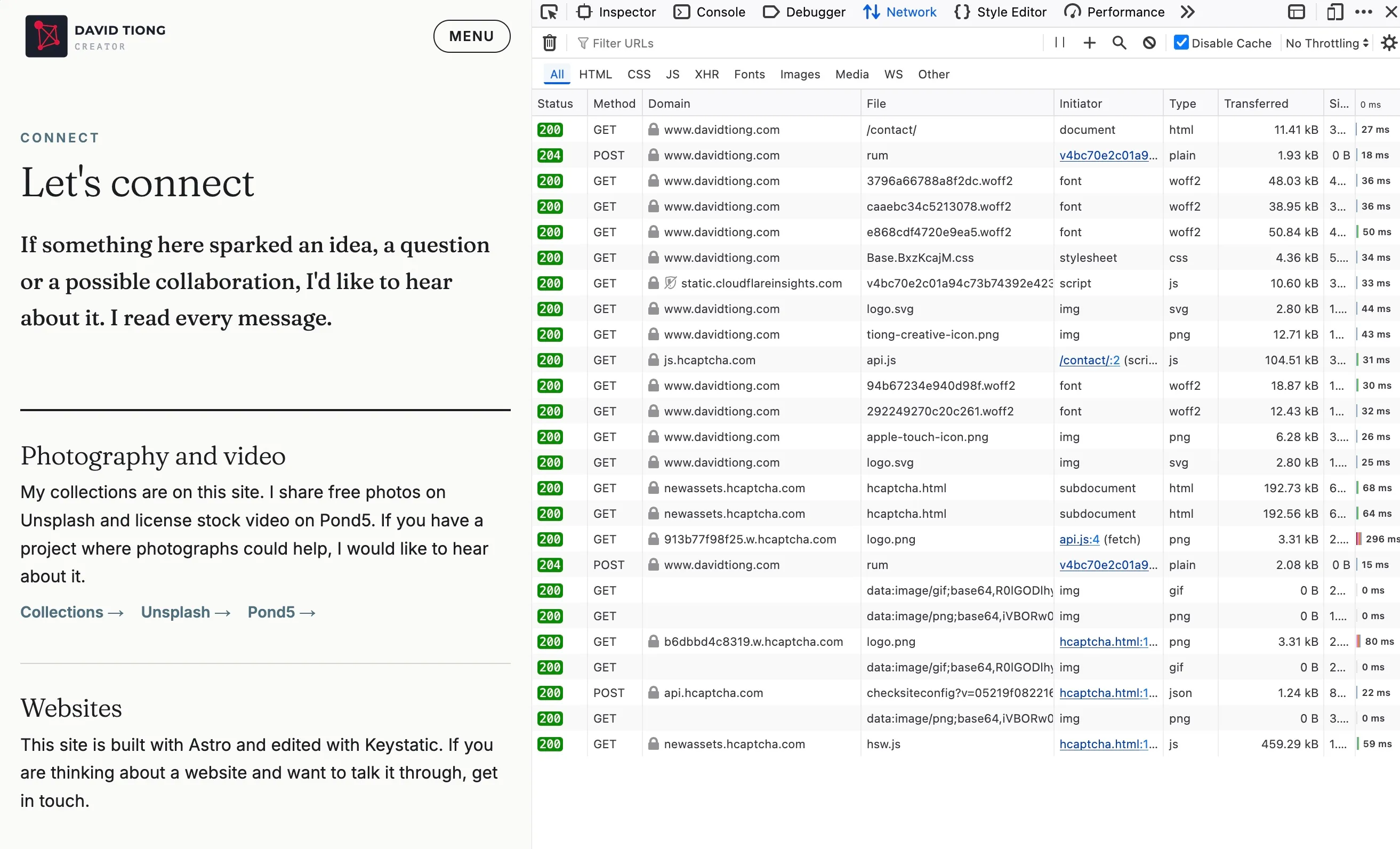
Write down the list of all domains that are not the domain the site is loading on. Repeat this process for other pages, to check if there are other domains loading on different pages. For example on my contact page I have a form and the form uses hCaptcha, so I might only load the hCaptcha scripts on that page. Also check if you have analytics scripts that only load after a cookie prompt, and if you are using any script blocker extensions or cookie consent filtering, you may need to check with those turned off, because they can hide domains from the list. Note what each domain is for as you go, so a script, an image, a background request, an embedded frame or a form submission, since each of those is a separate rule in the policy. On this site the full list came to Website Insights on my own subdomain, Cloudflare’s analytics beacon, Google Analytics, hCaptcha, and the form service the contact form posts to.
Step 2: write the list into the policy
In Astro the policy lives in astro.config.mjs, and this block is all you write yourself:
security: {
  csp: {
    directives: [
      "default-src 'self'",
      "base-uri 'self'",
      "object-src 'none'",
      "font-src 'self'",
      "img-src 'self' data: https://www.googletagmanager.com https://*.google-analytics.com",
      "connect-src 'self' https://stats.davidtiong.com https://cloudflareinsights.com https://*.google-analytics.com https://*.analytics.google.com https://www.googletagmanager.com https://hcaptcha.com https://*.hcaptcha.com",
      "frame-src https://hcaptcha.com https://*.hcaptcha.com",
      "form-action 'self' https://usebasin.com",
    ],
    scriptDirective: {
      resources: [
        "'self'",
        'https://stats.davidtiong.com',
        'https://static.cloudflareinsights.com',
        'https://www.googletagmanager.com',
        'https://hcaptcha.com',
        'https://*.hcaptcha.com',
      ],
    },
    styleDirective: {
      resources: [
        "'self'",
        'https://hcaptcha.com',
        'https://*.hcaptcha.com',
        { resource: "'unsafe-inline'", kind: 'attribute' },
      ],
    },
  },
},
The directives list is your rules for images, fonts, background requests (connect-src), frames and forms, and 'self' means your own domain. scriptDirective and styleDirective are the domains scripts and styles may come from. Your domains will be different from mine; they’re the list from step 1, sorted into those rules.
Inline scripts need to be looked at also, as they don’t have an address to allow, so the policy applies this as a hash of the script’s content instead. The hashes are automatically added by Astro when the site builds (Astro 6 or later), into a <meta> tag in each page’s head, so if a script changes the next build gives it a new hash and you don’t have to touch them.
The 'unsafe-inline' for style attributes is deliberate, because image focus on this site and the colours in code blocks are style="" attributes on elements, and a style attribute can’t run script, so allowing them costs very little. I wouldn’t put 'unsafe-inline' on script-src though, since that undoes the whole point of having the policy.
Step 3: build it and click through
The dev server doesn’t apply the policy at all, because it serves pages on the fly rather than building them, so you need to run npm run build and npm run preview, then open the preview with the Network tab showing, and go through every kind of page and everything that moves: menus, image viewers, forms. If the policy blocks something it shows up in the panel as blocked with CSP as the reason, so you fix the list, build again, and once nothing is blocked you push it.
I did all that, pushed it, and scanned again.
What didn’t change the grade
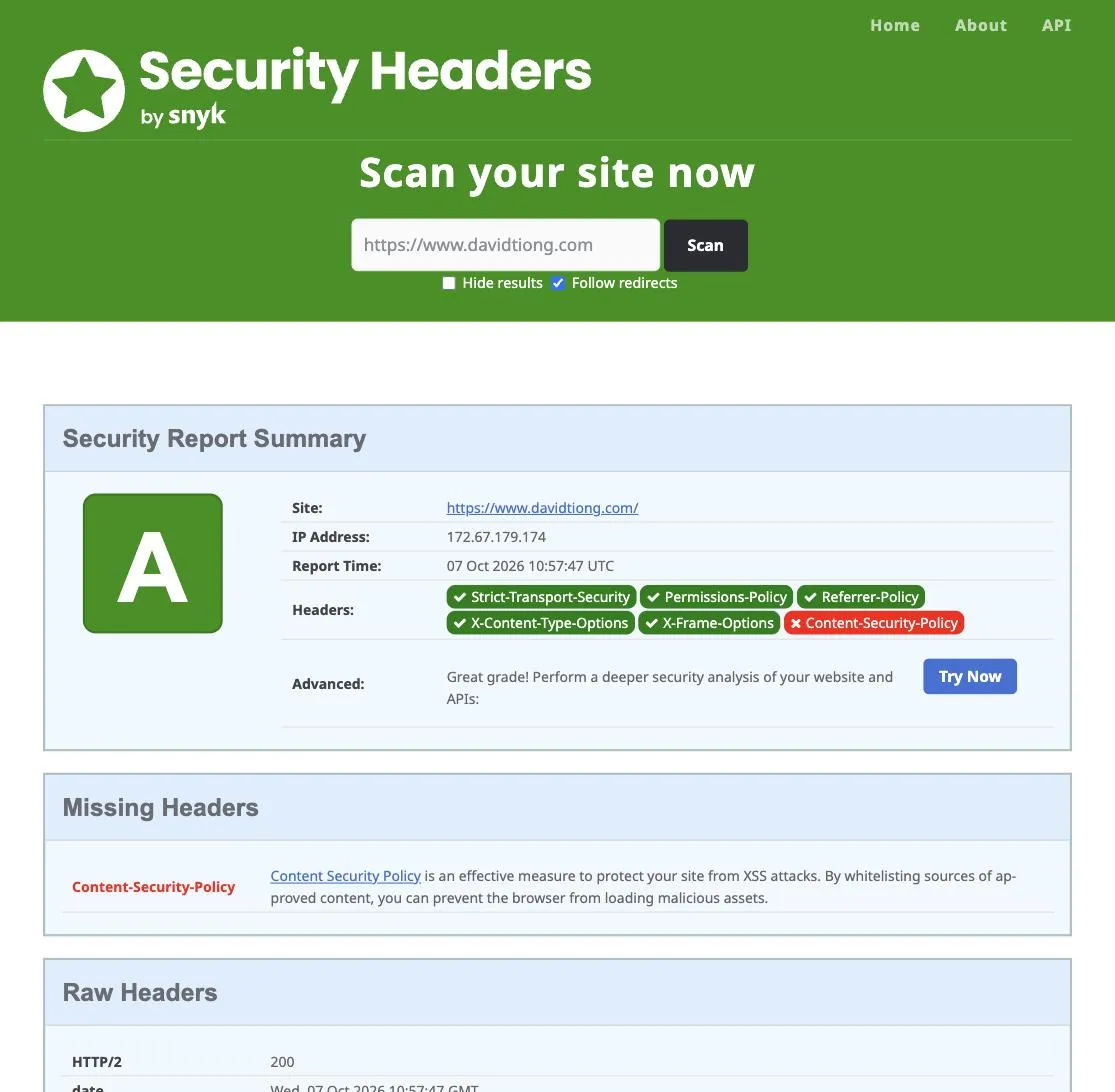
I was initially surprised that when I ran the scan again after these changes, the site still showed as an A, with the CSP missing. I had already confirmed the browser was applying the policy during testing, using curl and inspecting in the browser. I realised that the scanner reads the response headers coming back from the server, not the page itself, so a security policy in a meta tag in a page isn’t being checked by the scanner. So the site was being protected but not picked up in the scan.
The fix, part 3: send it as a header too
To get the policy into a header, I wrote a small Astro integration that runs after the build. It reads the <meta> policy out of every built page, merges them into one policy, and appends that to the _headers file under /*, so one header covers every page.
I did hit a couple of issues. Cloudflare only allows 2,000 characters per line in the _headers file, and when I merged the policies from all 90 pages it came to 2,832 characters, most of which was the style hashes. So what I did was to have the header only include the script hashes, and to allow inline style elements, and that way each page’s meta policy still includes the hashes for inline styles. The browser applies both policies and the stricter one wins, so the styles are still checked, and a style element doesn’t run a script, so there’s no concern with it not being in the header. Secondly, preventing other sites putting yours in an iframe requires frame-ancestors, and that one only works in a header, so it’s only applied there.
// integrations/csp-headers.mjs, added to `integrations` in astro.config.mjs
import fs from 'node:fs';
import path from 'node:path';
const META = /<meta http-equiv="content-security-policy" content="([^"]*)"/;
const decode = (s) => s.replace(/'/g, "'").replace(/"/g, '"').replace(/&/g, '&');
function* htmlFiles(dir) {
for (const entry of fs.readdirSync(dir, { withFileTypes: true })) {
const full = path.join(dir, entry.name);
if (entry.isDirectory()) yield* htmlFiles(full);
else if (entry.name.endsWith('.html')) yield full;
}
}
function mergePolicies(policies) {
const directives = new Map();
for (const policy of policies) {
for (const part of policy.split(';')) {
const [name, ...sources] = part.trim().split(/\s+/);
if (!name) continue;
const set = directives.get(name) ?? new Set();
for (const s of sources) set.add(s);
directives.set(name, set);
}
}
return [...directives].map(([name, set]) => `${name} ${[...set].join(' ')}`).join('; ');
}
export default function cspHeaders() {
return {
name: 'csp-headers',
hooks: {
'astro:build:done': ({ dir, logger }) => {
const root = dir.pathname;
const policies = [];
for (const file of htmlFiles(root)) {
const m = fs.readFileSync(file, 'utf8').match(META);
if (m) policies.push(decode(m[1]));
}
if (policies.length === 0) return;
const policy = mergePolicies([...policies, "frame-ancestors 'self'"]).replace(
/style-src [^;]*/,
(directive) => `${directive.replace(/ 'sha256-[^']+'/g, '')} 'unsafe-inline'`,
);
const line = ` Content-Security-Policy: ${policy}`;
if (line.length > 2000) {
throw new Error(`csp-headers: ${line.length} characters; Cloudflare allows 2,000 per line.`);
}
const headersFile = path.join(root, '_headers');
const existing = fs.existsSync(headersFile) ? fs.readFileSync(headersFile, 'utf8') : '';
fs.writeFileSync(headersFile, `${existing.replace(/\n?$/, '\n')}\n/*\n${line}\n`);
logger.info(`_headers: Content-Security-Policy from ${policies.length} pages, ${line.length} characters`);
},
},
};
}Then it was the same again, push it, wait for the build and scan.
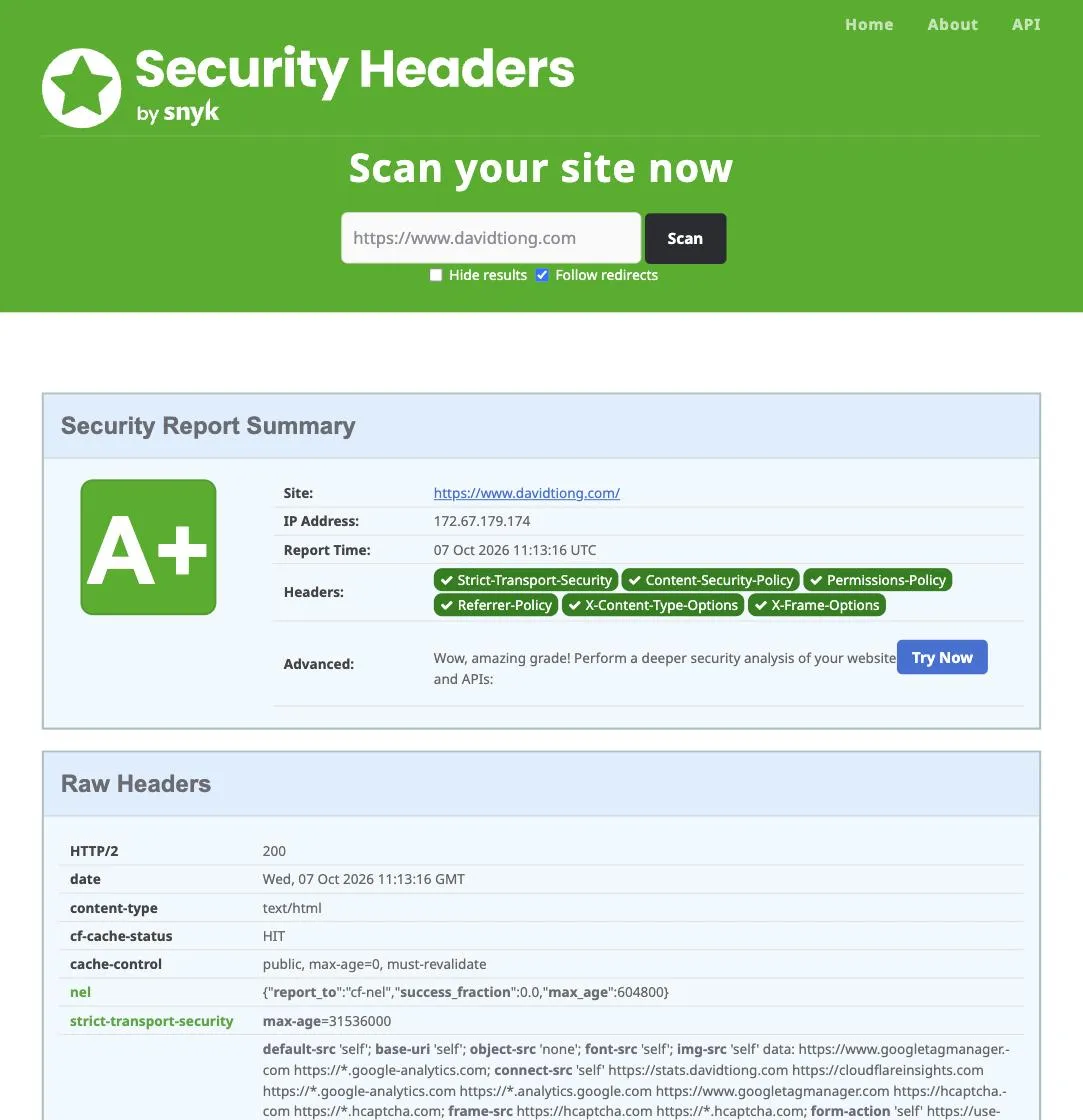
Things that broke along the way
It’s good to test and learn along the way, as things don’t always go to plan, or unexpected issues arise from changes or updates you’ve made.
The first thing to break was the Keystatic admin, where the pages render on demand rather than at build time, so Astro sent the policy as a header there, and Keystatic’s own inline scripts and styles aren’t among the hashes. When the page loaded it was missing its styles, so it didn’t work. A few lines of middleware fixed it, dropping the policy header on the /keystatic route only. If your CMS runs on the same site, test it.
Then the analytics wasn’t loading. This was due to the loader being an inline script, and since Astro only hashes bundled scripts, the inline one was being blocked. The fix was to change the loader to a bundled script so Astro hashes it with the rest. The local test had passed because that script only runs on the production hostname, so I now check the live site in a browser’s network panel straight after deploying, not only the local build.
Cloudflare’s own beacon was blocked as well, which surprised me because I’d checked the page with curl for anything Cloudflare adds and didn’t see any Cloudflare script domain loading. After investigating, I found that Cloudflare injects its Web Analytics beacon only into pages served to browsers, so it was the network panel that showed it blocked, and I added 2 more hosts to the list.
Check it worked
Start with the scanner, by pasting your address into securityheaders.com with “Follow redirects” ticked, and a pass is all 6 headers green and an A+. Results are cached, so if you just deployed, tick “Hide results” off and scan again.
Then from a terminal, which doesn’t depend on anyone’s scanner:
curl -sI https://www.davidtiong.com/ | grep -i 'strict-transport\|content-security'Be sure to change the address to your own web address, and if the headers are there they will be output in the terminal. To make the policy readable, pipe it through tr ';' '\n' for one directive per line. The per-page <meta> version, which carries the full set of hashes for that page, is in the page itself rather than the headers, and since the built page is one long line you need grep -o to pull out the tag on its own:
curl -s https://www.davidtiong.com/ | grep -o '<meta http-equiv="content-security-policy"[^>]*>'Finally, open the site in a browser with the network panel showing and click around: every page type, the menu, any viewer or lightbox, the contact form. If the policy blocks anything it shows up there as blocked, with CSP as the reason, which helps to confirm what is working.
Wrapping up
Other hosting providers may have similar processes for handling security headers, or plugins that will write the headers for you, and you’d still go through the same process to identify the list of hosts. The whole thing took me an evening of pushing a change, scanning again and fixing the next thing, and the policy has been running on the site since then with nothing else blocked, so I hope this helps if you give it a go.