Ask Claude or ChatGPT About Your Mac Apps with an MCP Server
An MCP server that lets Claude or ChatGPT read and update your Tiong Creative apps

I’ve added an MCP server for my Mac apps, which is how an AI assistant like Claude connects to other software, so that Claude Desktop, Claude Code or ChatGPT desktop can use the data in Gift Keeper, Client Manager and Lists & Notes while those apps are open. So instead of opening each app to see what’s coming up, you can ask Claude or ChatGPT what’s on this week, or ask it to save a gift idea, add a task or add items to a list, and the app records it the same as if you’d done it yourself. It’s free, on npm and open source under the MIT licence on GitHub.
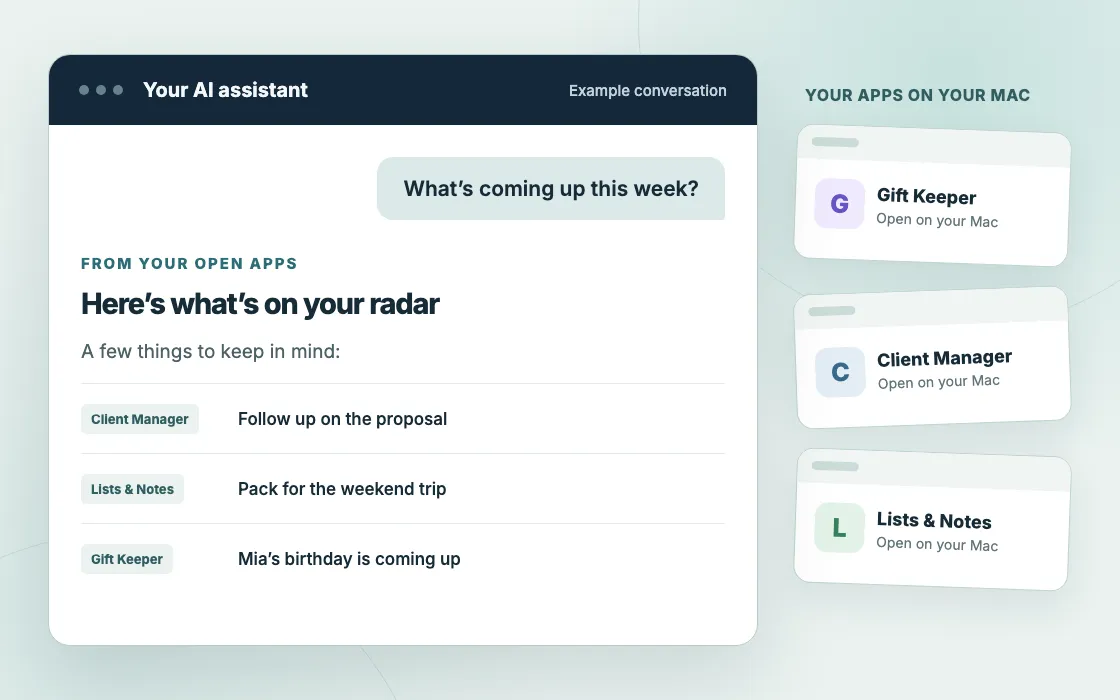
Why I added an MCP server
I added it to make the day to day more manageable with the power of AI, and to save some time while doing it. The apps are still the starting point and where you manage your data, which stays on your Mac, and the assistant is for interacting with that data for your schedules, reminders and tasks, so you can stay on top of everything.
What the MCP server can do
It works with 3 apps so far, and you need at least these versions: Gift Keeper 1.3.0, Client Manager 1.6.0 and Lists & Notes 1.23.0.
With Gift Keeper it can read your people and what helps choose a gift, upcoming occasions with budget and spend, and your gift ideas. Gift ideas can be saved, a gift changed or given, a person or an occasion added, and an occasion marked as done.
With Client Manager it can read pending reminders, open tasks, invoices still owing and a client with their jobs. You can ask it to add a client, a job, a reminder or a task, log an activity, and change a job, a task or a reminder.
With Lists & Notes it can read your lists with their items and your notes, including the full text of any one note. You can ask it to add items to a list, tick off or reword items, create a list or a note, and add to, replace or rename a note.
None of these changes delete anything.
Setting it up
You need Node.js on your Mac, plus Claude Desktop, Claude Code or ChatGPT desktop. If you don’t have Node.js, download the LTS version from nodejs.org, which also installs the npx command used below. The full steps are in the help centre guide. To install it for Claude Desktop, open Terminal and run:
npx @tiongcreative/assistant-mcp installWhen Terminal asks whether to install the package, type y and press Return. This adds the assistant to Claude Desktop’s settings and keeps a backup of the previous settings file, and then it lists the next steps. Quit Claude Desktop completely with Command Q rather than just closing its window, then open it again. When Claude Desktop asks, allow the “tiongcreative” server. After that, open Settings in each app you want the assistant to use and tick Allow assistant access. Then, with those apps open, ask Claude something like “what’s on this week?” If Claude says it can’t reach an app, check that the app is open and that Allow assistant access is ticked in its Settings.
For Claude Code, you can add it there instead with:
claude mcp add tiongcreative -- npx -y @tiongcreative/assistant-mcpFor ChatGPT desktop on the same Mac, run this instead:
npx @tiongcreative/assistant-mcp install chatgptChatGPT desktop needs to be in your Applications folder, and if it isn’t, the command tells you to install it first. Restart ChatGPT, tick Allow assistant access in each app, and type /mcp in ChatGPT to check the connection. This setup is for ChatGPT desktop and not ChatGPT in a web browser. To check it or remove it, run npx @tiongcreative/assistant-mcp status chatgpt or npx @tiongcreative/assistant-mcp uninstall chatgpt, and then restart ChatGPT. If ChatGPT already has a different MCP server called “tiongcreative”, the command stops and asks you to remove that one in ChatGPT’s settings first.
Only the apps installed on your Mac are offered, and that’s checked when Claude Desktop starts, so after you install another Tiong Creative app, quit and reopen Claude Desktop. To check the setup run npx @tiongcreative/assistant-mcp status, and to remove it run npx @tiongcreative/assistant-mcp uninstall and then restart Claude Desktop.
Things to know
What the assistant reads goes to whichever AI service you use, which is OpenAI if you use ChatGPT, so turn on Assistant access only for an assistant you trust. Each app doesn’t need AI built into it for this, since the assistant uses your own AI account, and there’s no other account to create.
The assistant talks to each app on your Mac and not to tiongcreative.com.au. While Assistant access is on, each app keeps a small file in its own data folder, which holds a key made fresh each time the app opens. Only your Mac user account can read that file, and it is removed when you turn access off or quit the app.
If an app isn’t open, or its Assistant access box isn’t ticked, the assistant is told so. It can open an app for you, but it is set up to ask you first. Claude Desktop also asks the first time the assistant uses each of its tools, and you can choose to always allow it.
Assistant access is set on each Mac, and restoring a backup doesn’t change it, so after moving to a new Mac you turn it on again in each app. It works with Claude Desktop, Claude Code and ChatGPT desktop.
I hope this helps if you give it a go.