If you've ever wanted a simple task manager that stays out of your way — no accounts, no cloud sync, no subscriptions — Local Task Manager might be exactly what you need.
It's a single-page app that runs on your machine via Node.js. Your tasks live in a local JSON file, the UI runs in your browser, and nothing ever leaves your computer.
Why Local? #
Most task apps want you to create an account, sync to their servers, and pay a monthly fee. For a personal productivity tool, that's overkill. Local Task Manager takes a different approach:
- Your data stays on your machine — tasks are stored in a simple JSON file in the project folder
- No internet required — works completely offline
- No accounts or logins — just open your browser and go
- Instant startup — the server launches in under a second
- Fully hackable — it's plain JavaScript, easy to read and modify
What It Does #
Despite being lightweight, it packs in the features that actually matter for daily productivity:
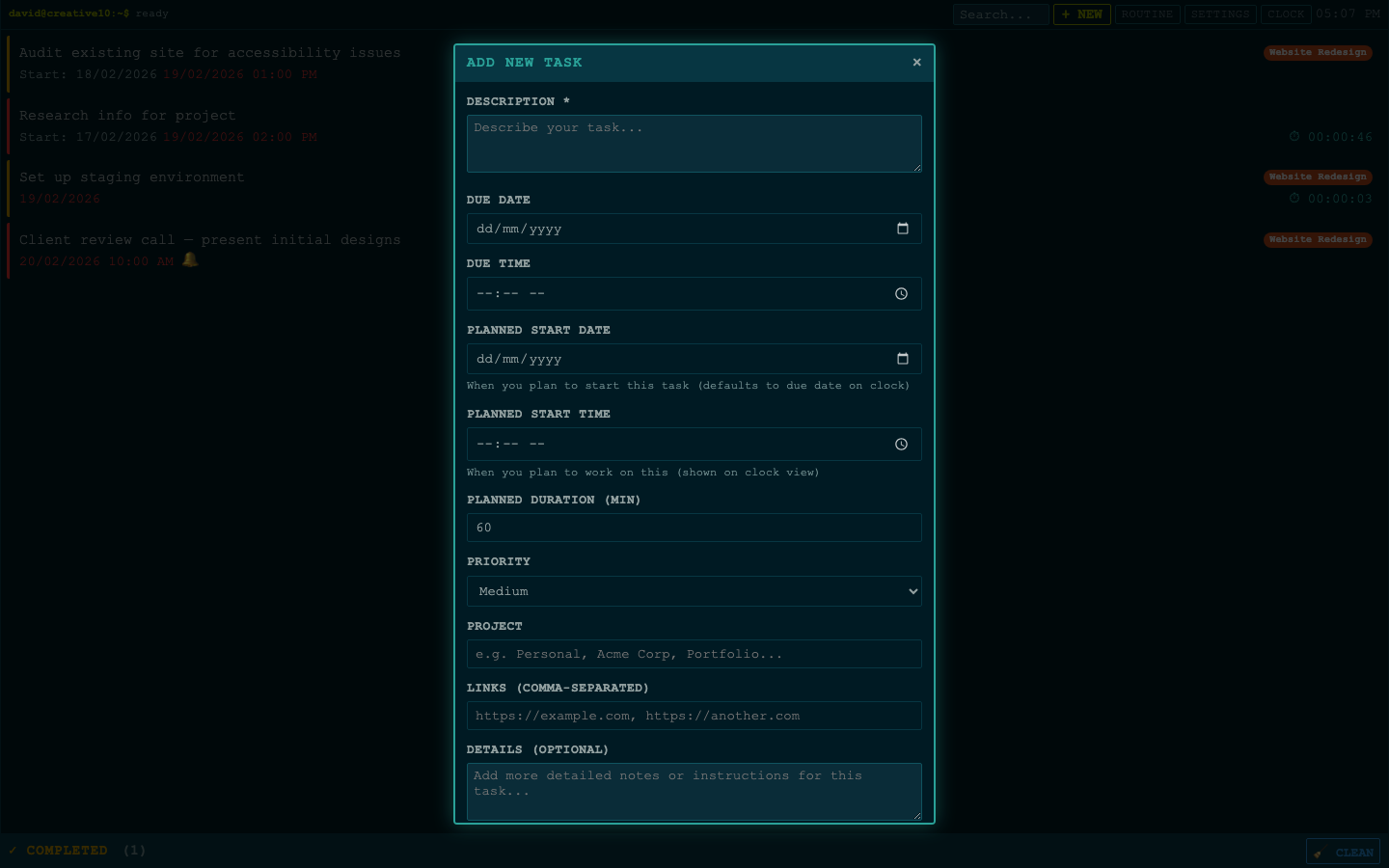
- Task timer — start a timer on any task, track how long you spend
- Pomodoro mode — optional work intervals (25, 45, or 65 min) with break reminders
- Focus mode — immersive full-screen view when you need to concentrate
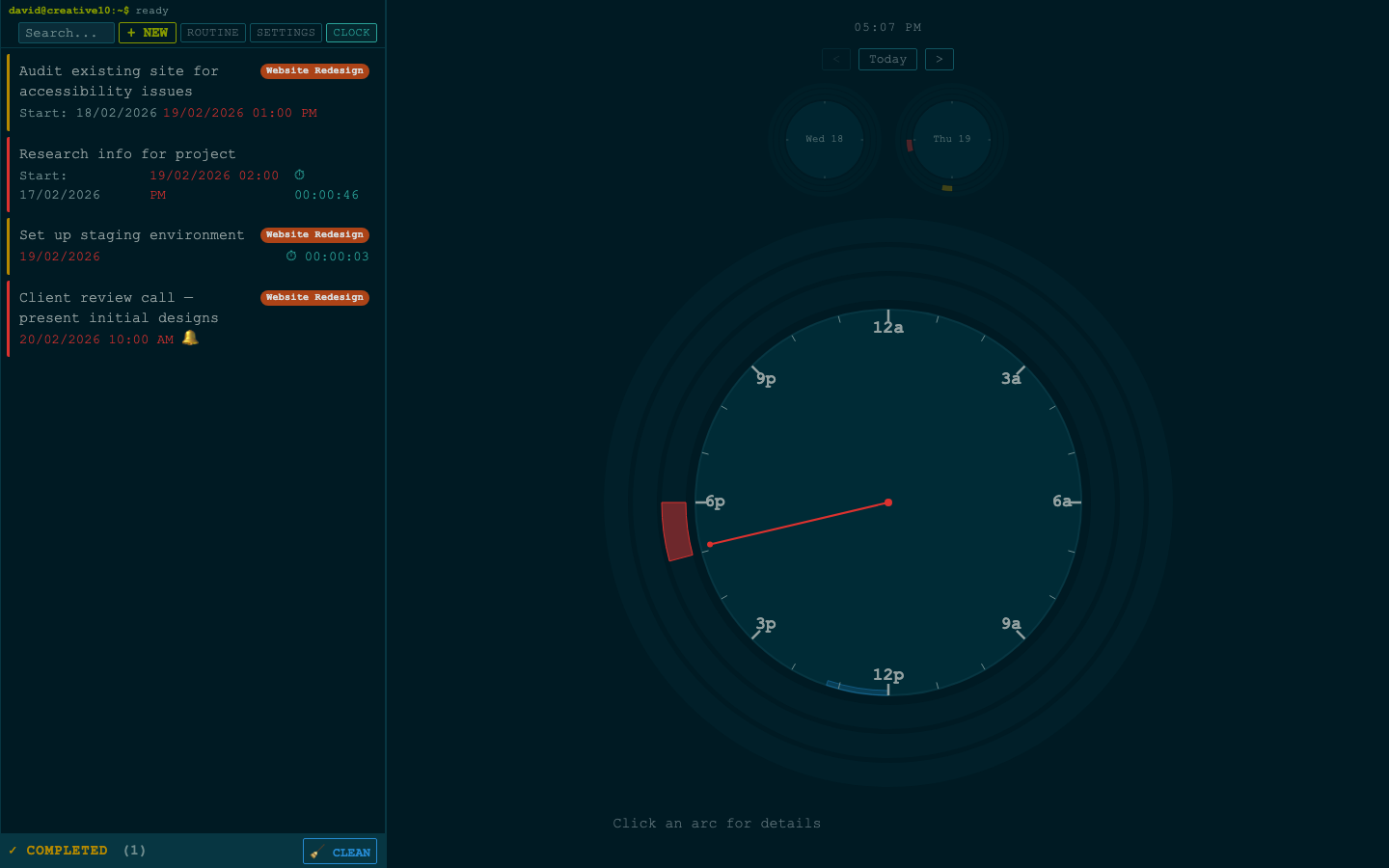
- Analog clock view — see your scheduled tasks as arcs on a 12-hour clock face
- Calendar appointments — set reminders for time-sensitive tasks
- Recurring tasks — daily or weekly, with optional weekday-only scheduling
- Project categories — group tasks with auto-colored badges
- Streaks — gamification for completing 3+ tasks per day
- Import/export — backup your data or import tasks from JSON
Getting Started #
1. Install Node.js #
Download and install Node.js (v18 or higher) from nodejs.org.
2. Download the App #
Download the latest release from GitHub and unzip it:
github.com/davettt/local-task-manager
Click the green Code button, then Download ZIP. Unzip the folder and move it somewhere suitable on your system (e.g. your home directory or a tools folder).
3. Install Dependencies #
Open a terminal, navigate to the folder, and run:
cd local-task-manager
npm install
4. Start the Server #
npm run devOpen your browser to localhost:3000 and you're ready to go. Check the terminal output after running the command — if port 3000 is already in use, the server will automatically find the next available port and show you which one it's using.
The dev command starts the server with auto-reload, so if you make changes to the code it picks them up automatically.
Stopping and Restarting #
Press Ctrl+C in the terminal to stop the server. To start again, just run npm run dev from the same folder. Your tasks persist between restarts — they're saved to local_data/tasks.json on disk, so nothing is lost.
Video Walkthrough #
For a full walkthrough of all features, check out the video:
Running on System Startup (Optional) #
If you want the server to start automatically when your computer boots, you can use PM2:
npm install -g pm2
pm2 start src/server.js --name "task-manager"
pm2 save
pm2 startup
This keeps it running in the background so the app is always available in your browser.
Keeping Your Data Safe #
Since everything is stored locally in the local_data/ folder, you have a couple of options for keeping your tasks backed up:
Sync the folder — If you already use a file sync service (Dropbox, Google Drive, iCloud, OneDrive, Tresorit, etc.), simply place the local-task-manager folder inside a synced directory. Your tasks will automatically sync across your devices.
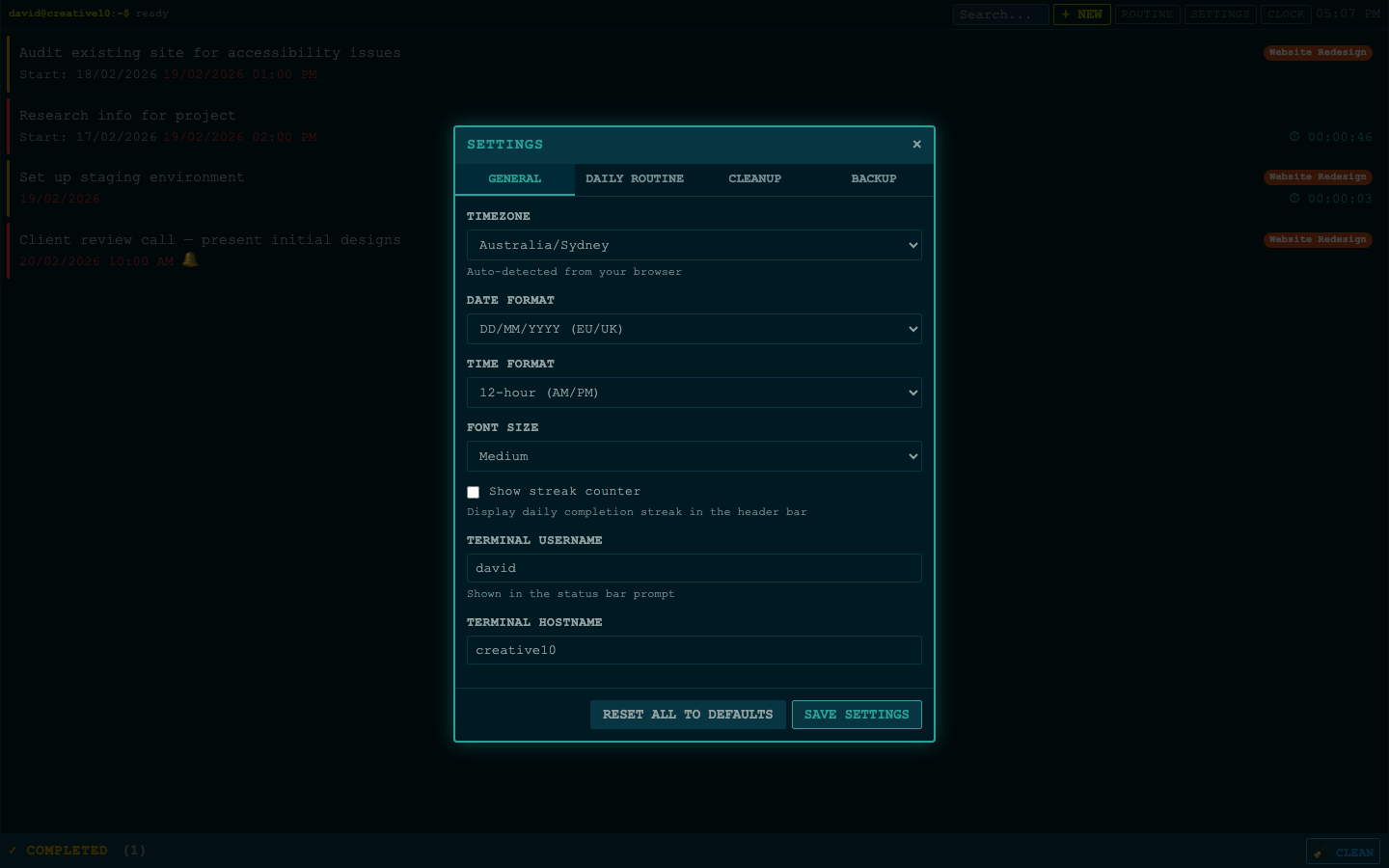
Regular exports — If you don't sync your files, use the built-in backup feature (Settings > Backup) to export your tasks as a JSON file. Save these exports to your cloud storage or another safe location. It only takes a few seconds and gives you a full snapshot you can restore from at any time.
Links #
- GitHub: github.com/davettt/local-task-manager
- License: MIT with Commons Clause — free to use, fork, and modify for personal use
- Issues: Report bugs or feedback
This is a personal project I built for my own workflow. You're welcome to fork it and make it your own.
